
Anıl Tuluy
Blog Post
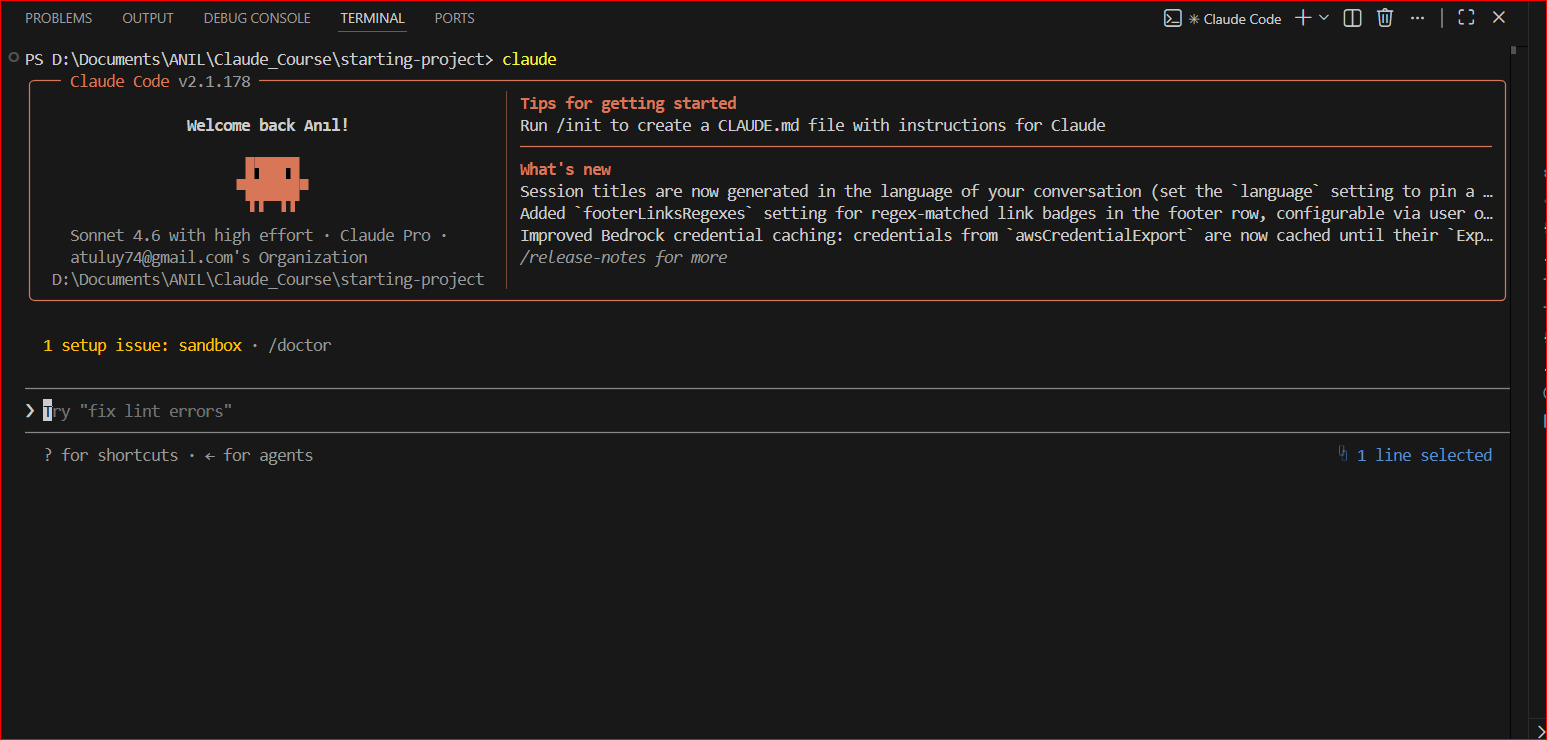
Claude Code In VS Code Terminal
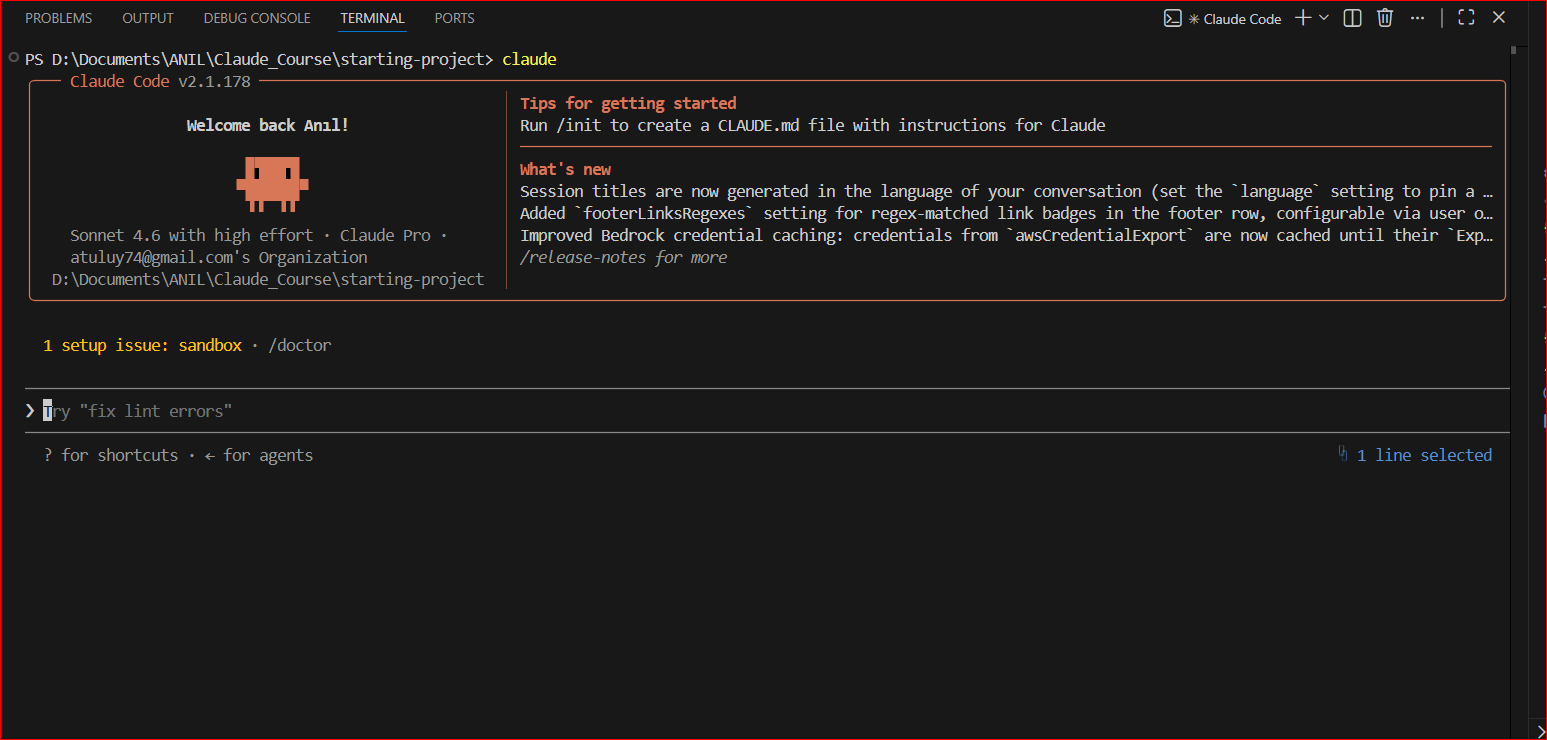
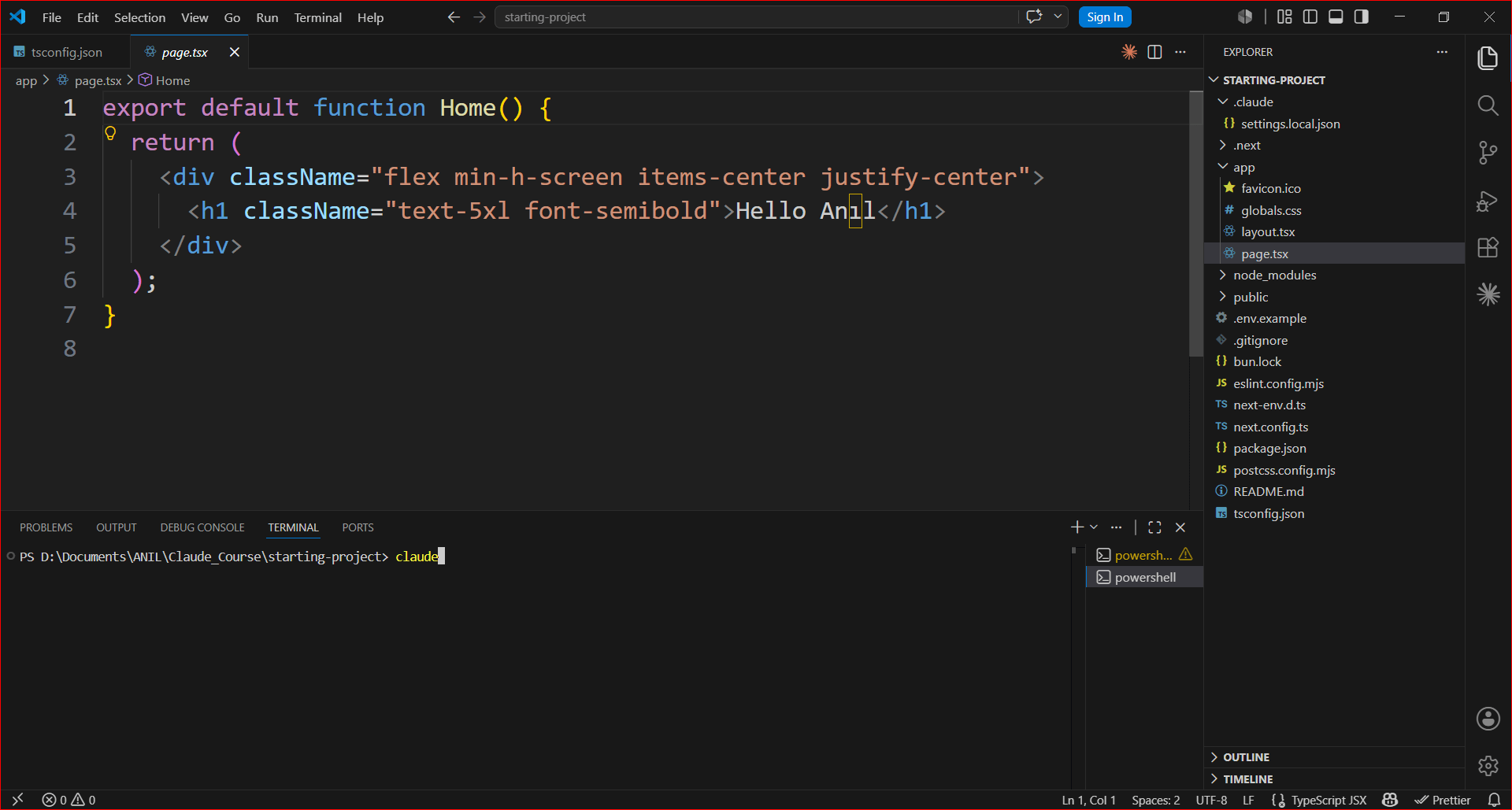
Welcome In VS Code Terminal
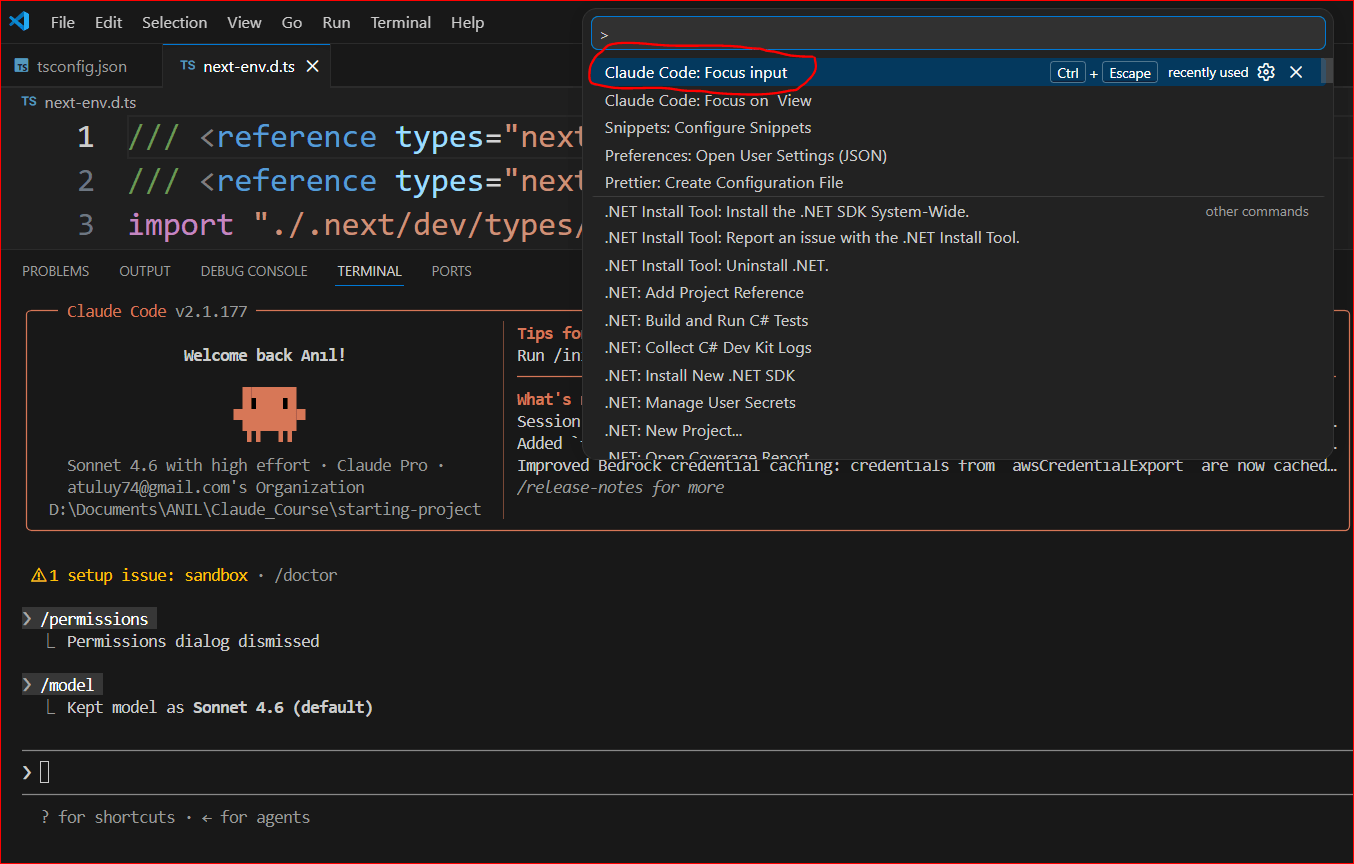
Entering Focus Input
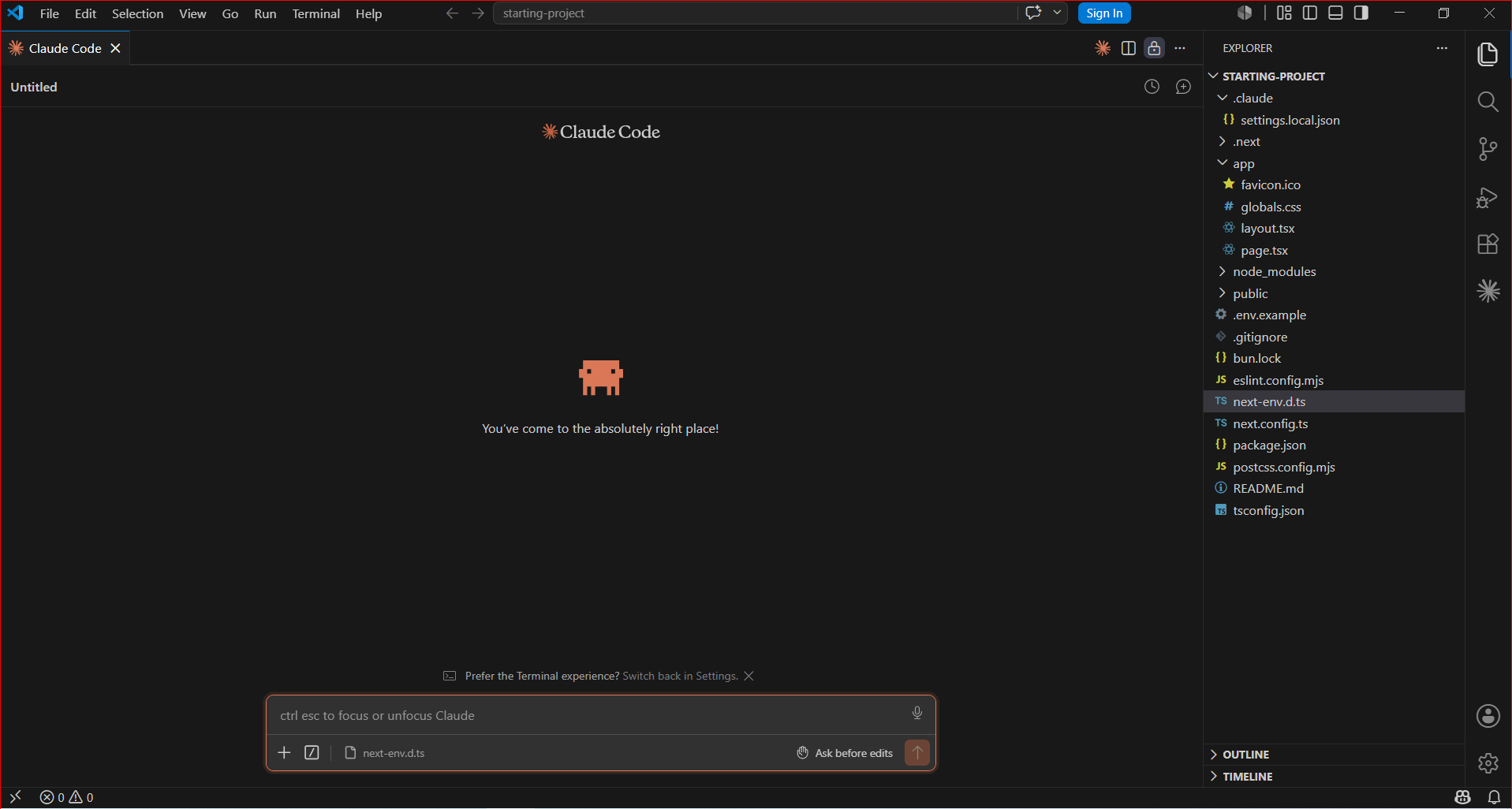
Focus Input View
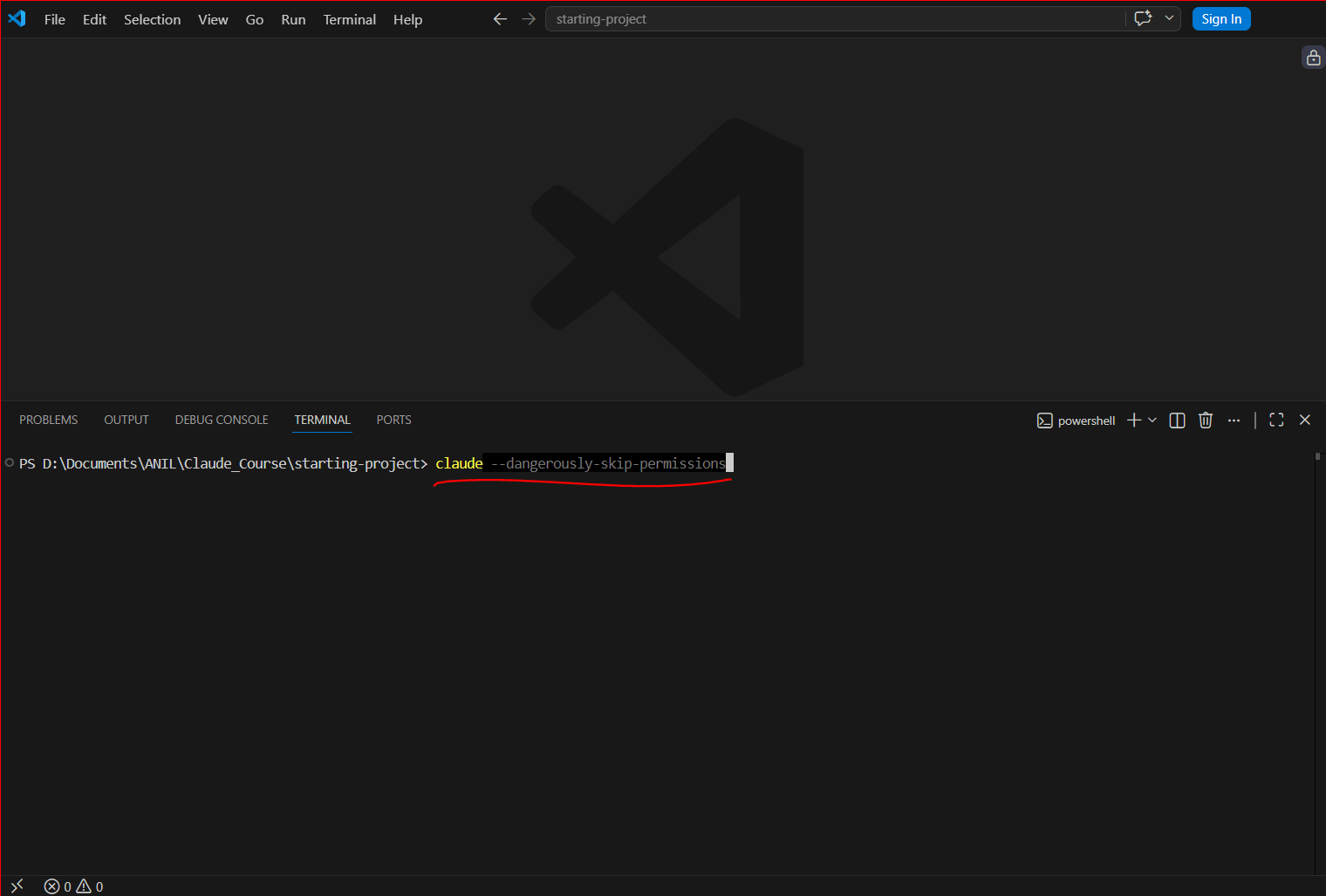
Skip Permissions Flag
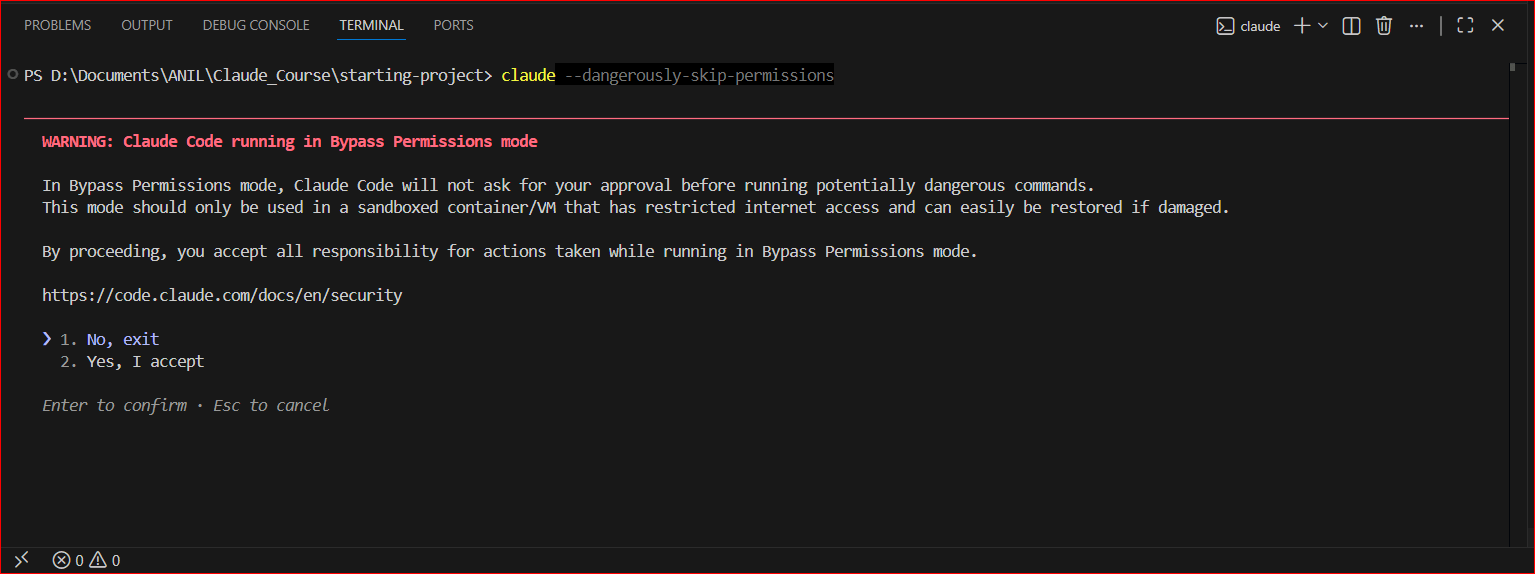
Skip Permissions Warning
Getting Started with Claude Code
ON MARCH 16, 2026 / ARTIFICIAL INTELLIGENCE
I spent some time getting familiar with Claude Code and wanted to document what I learned.
Installation
To get Claude Code running, you first need Git installed on your system. After that, installation is just one command in PowerShell:
irm https://claude.ai/install.ps1 | iex
No Node.js, no npm — the native installer handles everything. Once installed, you have several ways to interact with it:
- CLI (PowerShell or Git Bash)
- Inside VS Code — via the extension, with the integrated terminal or in a dedicated focus mode where Claude appears as a panel within the editor
- Other IDE’s
- Desktop App
- Mobile
Configuration
One of the things I liked about Claude Code is how flexible the configuration is. There are two levels:
1. Global Configuration
You can set up a global Claude folder on your system with a settings.json file. This applies to every project. You can also modify global settings directly inside a session by running /config.
One important thing here: add a deny rule for your .env files. By default, Claude can read them, and you almost certainly do not want that.
2. Project-Based Configuration
Inside your project, you can create a .claude folder with its own settings.json. These settings will override the global ones for that specific project.
You can also add a settings.local.json file, which overrides even the project settings — and importantly, this file is excluded from source control (it will not end up in your Git repository).
Useful Commands
There are a few slash commands that are worth knowing from the start:
/model— switch between Claude models (on Windows,ALT + Pworks as a shortcut)/context— shows how much of the current context window has been used/usage— shows your remaining tokens for your plan/compact— manually triggers context compaction/clear— clears the session and starts fresh (Claude will not remember anything from before)/rewind— lets you roll back to a previous point in the conversation (like snapshots)/resume— if your session broke unexpectedly, this lets you browse and reopen past sessions/sandbox— enables Claude’s native sandboxing feature/init— analyzes your codebase (file structure, package files, configs, existing docs) and generates aCLAUDE.mdfile — a project briefing with build/test commands, architecture notes, and conventions that gets loaded into context at the start of every future session. Run it once per project, then refine the file as you go.
Starting with a prompt directly:
claude "explain me the test.cs file within this project"
If you want to skip the interactive CLI entirely:
claude -p "explain me the test.cs file"
To reopen the last session:
claude -c
Context Window and Sessions
This is something worth understanding before you run into it.
Claude Code keeps track of your conversation within a context window. As you work, this fills up. When it gets close to the limit, Claude Code will automatically compact it — summarizing what has been done and what still needs to be done. There is a buffer of around 45,000 tokens reserved for this, which is not available for your actual work.
You can also trigger compaction manually with /compact, but compaction always comes with some loss of information. This is why it is generally better to keep sessions focused and concise.
A few practical rules that helped me:
- When starting a new feature, open a new session (new terminal or
/clear) - When Claude gets stuck on a bug and just cannot fix it, a fresh session often works better than pushing further
- You can run multiple sessions at the same time and work on different tasks in parallel
Permissions
By default, Claude Code will ask for your permission before making any edits. You can give permission permanently, just for that one action, or deny it.
Pressing Shift + Tab cycles through the available permission modes. For example, “Accept edits on” allows Claude to edit files in your project without asking each time — but it still cannot touch anything outside the project.
Even in this mode, if you ask Claude to do something like commit to GitHub, it will ask for permission again.
Full permission mode:
claude --dangerously-skip-permissions
This skips all permission prompts. Claude will still only have access to the project files — it cannot roam freely on your hard drive — but it can erase your Git history, delete files, or write a bash script that operates outside the project. Use with care.
A safer alternative is to run it inside a Docker container:
docker sandbox run claude
This wraps your project in a Docker sandbox and runs Claude in full-permission mode by default, but with the security boundaries that Docker provides.
For Claude’s native sandboxing feature (/sandbox), the situation on Windows is that you currently need WSL2 installed. Native Windows support is planned but not yet available.
Reverting Changes
When AI makes a change you do not like, you have two options:
- Git — the obvious one, and the recommended approach for anything serious
- Rewind — press
ESCtwice, or run/rewind. Claude Code will show you the previous snapshots of your conversation and let you step back to an earlier point
The /rewind command does not replace version control, but it is a quick way to undo something without leaving Claude Code.
GETTING STARTED WITH CLAUDE CODE
ON MARCH 16, 2026 / ARTIFICIAL INTELLIGENCE
I spent some time getting familiar with Claude Code and wanted to document what I learned.
Installation
To get Claude Code running, you first need Git installed on your system. After that, installation is just one command in PowerShell:
irm https://claude.ai/install.ps1 | iex
No Node.js, no npm — the native installer handles everything. Once installed, you have several ways to interact with it:
- CLI (PowerShell or Git Bash)
- Inside VS Code — via the extension, with the integrated terminal or in a dedicated focus mode where Claude appears as a panel within the editor
- Other IDE’s
- Desktop App
- Mobile
Configuration
One of the things I liked about Claude Code is how flexible the configuration is. There are two levels:
1. Global Configuration
You can set up a global Claude folder on your system with a settings.json file. This applies to every project. You can also modify global settings directly inside a session by running /config.
One important thing here: add a deny rule for your .env files. By default, Claude can read them, and you almost certainly do not want that.
2. Project-Based Configuration
Inside your project, you can create a .claude folder with its own settings.json. These settings will override the global ones for that specific project.
You can also add a settings.local.json file, which overrides even the project settings — and importantly, this file is excluded from source control (it will not end up in your Git repository).
Useful Commands
There are a few slash commands that are worth knowing from the start:
/model— switch between Claude models (on Windows,ALT + Pworks as a shortcut)/context— shows how much of the current context window has been used/usage— shows your remaining tokens for your plan/compact— manually triggers context compaction/clear— clears the session and starts fresh (Claude will not remember anything from before)/rewind— lets you roll back to a previous point in the conversation (like snapshots)/resume— if your session broke unexpectedly, this lets you browse and reopen past sessions/sandbox— enables Claude’s native sandboxing feature/init— analyzes your codebase (file structure, package files, configs, existing docs) and generates aCLAUDE.mdfile — a project briefing with build/test commands, architecture notes, and conventions that gets loaded into context at the start of every future session. Run it once per project, then refine the file as you go.
Starting with a prompt directly:
claude "explain me the test.cs file within this project"
If you want to skip the interactive CLI entirely:
claude -p "explain me the test.cs file"
To reopen the last session:
claude -c
Context Window and Sessions
This is something worth understanding before you run into it.
Claude Code keeps track of your conversation within a context window. As you work, this fills up. When it gets close to the limit, Claude Code will automatically compact it — summarizing what has been done and what still needs to be done. There is a buffer of around 45,000 tokens reserved for this, which is not available for your actual work.
You can also trigger compaction manually with /compact, but compaction always comes with some loss of information. This is why it is generally better to keep sessions focused and concise.
A few practical rules that helped me:
- When starting a new feature, open a new session (new terminal or
/clear) - When Claude gets stuck on a bug and just cannot fix it, a fresh session often works better than pushing further
- You can run multiple sessions at the same time and work on different tasks in parallel
Permissions
By default, Claude Code will ask for your permission before making any edits. You can give permission permanently, just for that one action, or deny it.
Pressing Shift + Tab cycles through the available permission modes. For example, “Accept edits on” allows Claude to edit files in your project without asking each time — but it still cannot touch anything outside the project.
Even in this mode, if you ask Claude to do something like commit to GitHub, it will ask for permission again.
Full permission mode:
claude --dangerously-skip-permissions
This skips all permission prompts. Claude will still only have access to the project files — it cannot roam freely on your hard drive — but it can erase your Git history, delete files, or write a bash script that operates outside the project. Use with care.
A safer alternative is to run it inside a Docker container:
docker sandbox run claude
This wraps your project in a Docker sandbox and runs Claude in full-permission mode by default, but with the security boundaries that Docker provides.
For Claude’s native sandboxing feature (/sandbox), the situation on Windows is that you currently need WSL2 installed. Native Windows support is planned but not yet available.
Reverting Changes
When AI makes a change you do not like, you have two options:
- Git — the obvious one, and the recommended approach for anything serious
- Rewind — press
ESCtwice, or run/rewind. Claude Code will show you the previous snapshots of your conversation and let you step back to an earlier point
The /rewind command does not replace version control, but it is a quick way to undo something without leaving Claude Code.